
Apple Maps
Places, coordinates and routes all come from Apple Maps.

iPhone developer location testing
Location testing, clear and controlled.
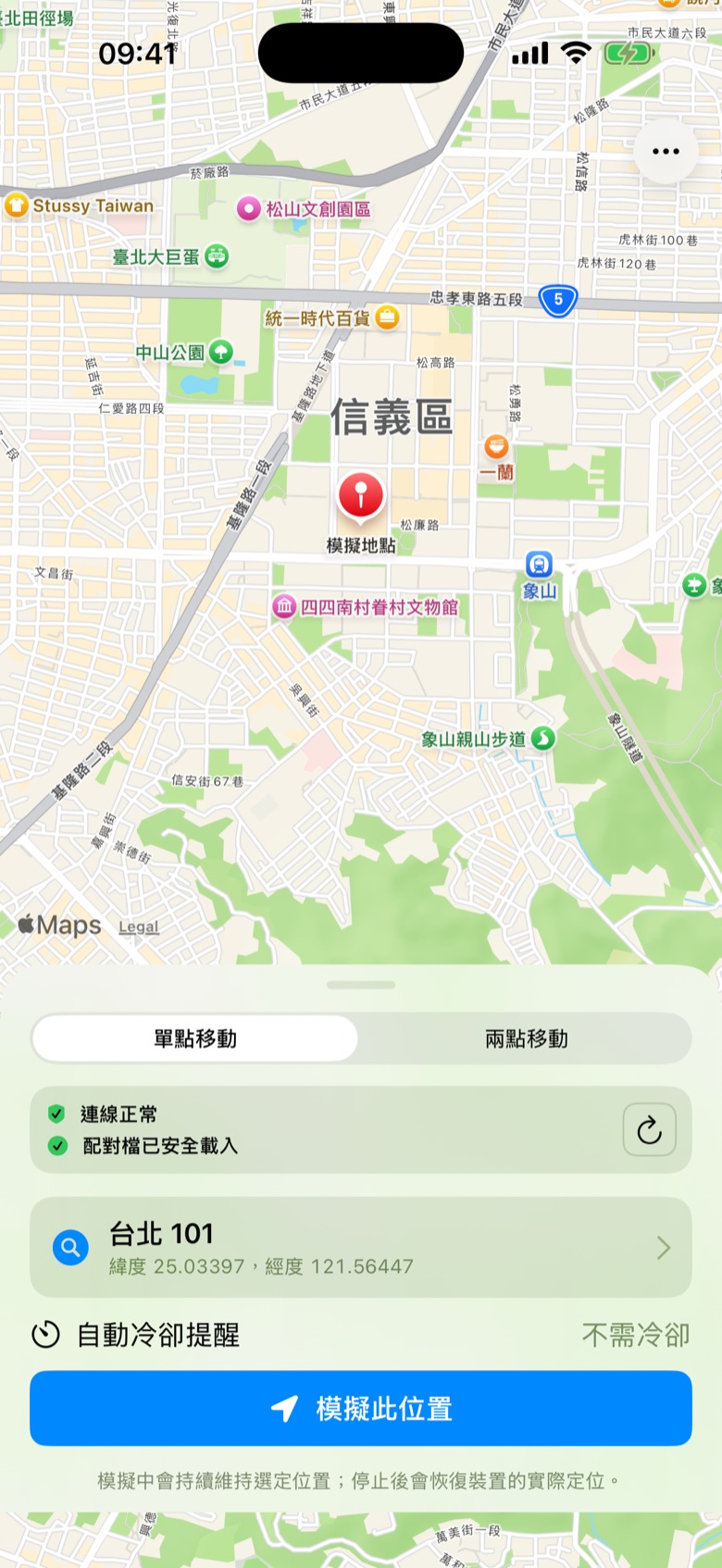
Search, pick a point, plan a route. All on one screen.
Testing location features shouldn’t mean driving across town. CoordinateLab takes your app anywhere without leaving your desk.
Places and routes come from Apple Maps. Simulation runs through the device’s developer services.
Search places and addresses, check coordinates, or tap anywhere on the map.
Start simulating a coordinate and it holds until you stop. Ideal for testing location-specific content.
Enter a start and destination to follow an Apple Maps driving route.
Adjust from 1–100 km/h at any time, pause and resume from where you are, or add natural speed variation.

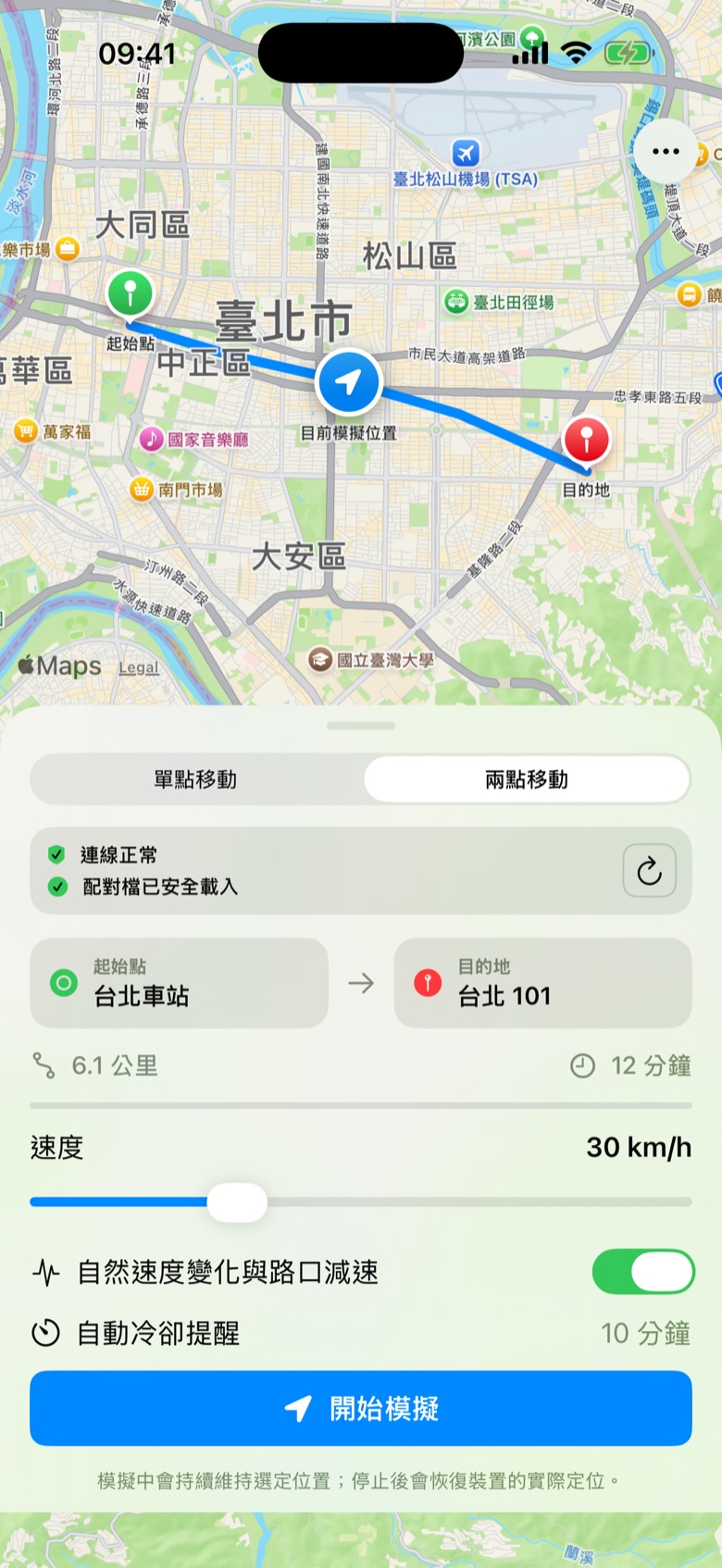
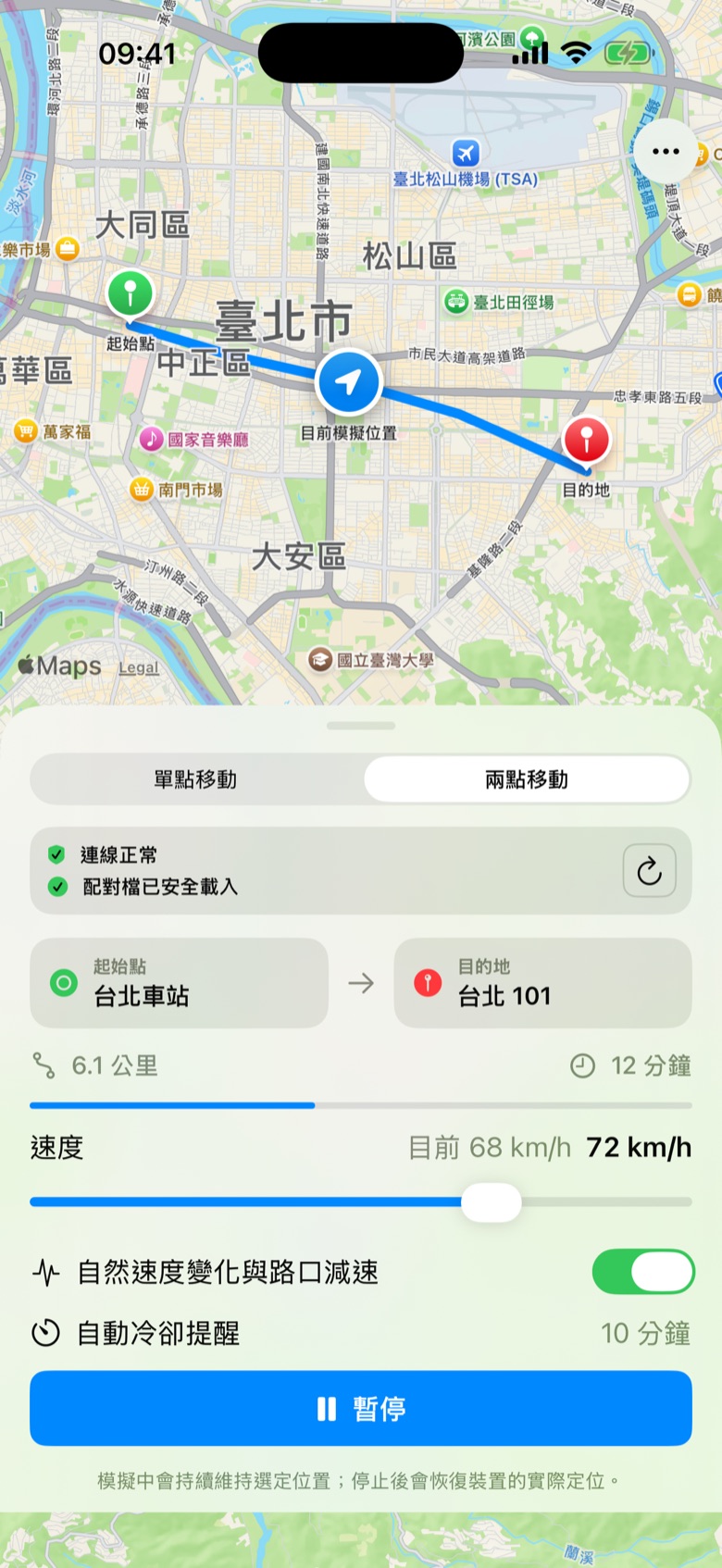
Drag the speed and watch the arrival time change. An interactive sketch of route mode.
Sped up for illustration. Real simulation runs in real time.
Core location simulation relies on a developer setup. These external tools are not included in the app.
Pairing files contain sensitive connection credentials. Only use files for devices you own or are authorized to use. Never publish, share or use someone else’s.
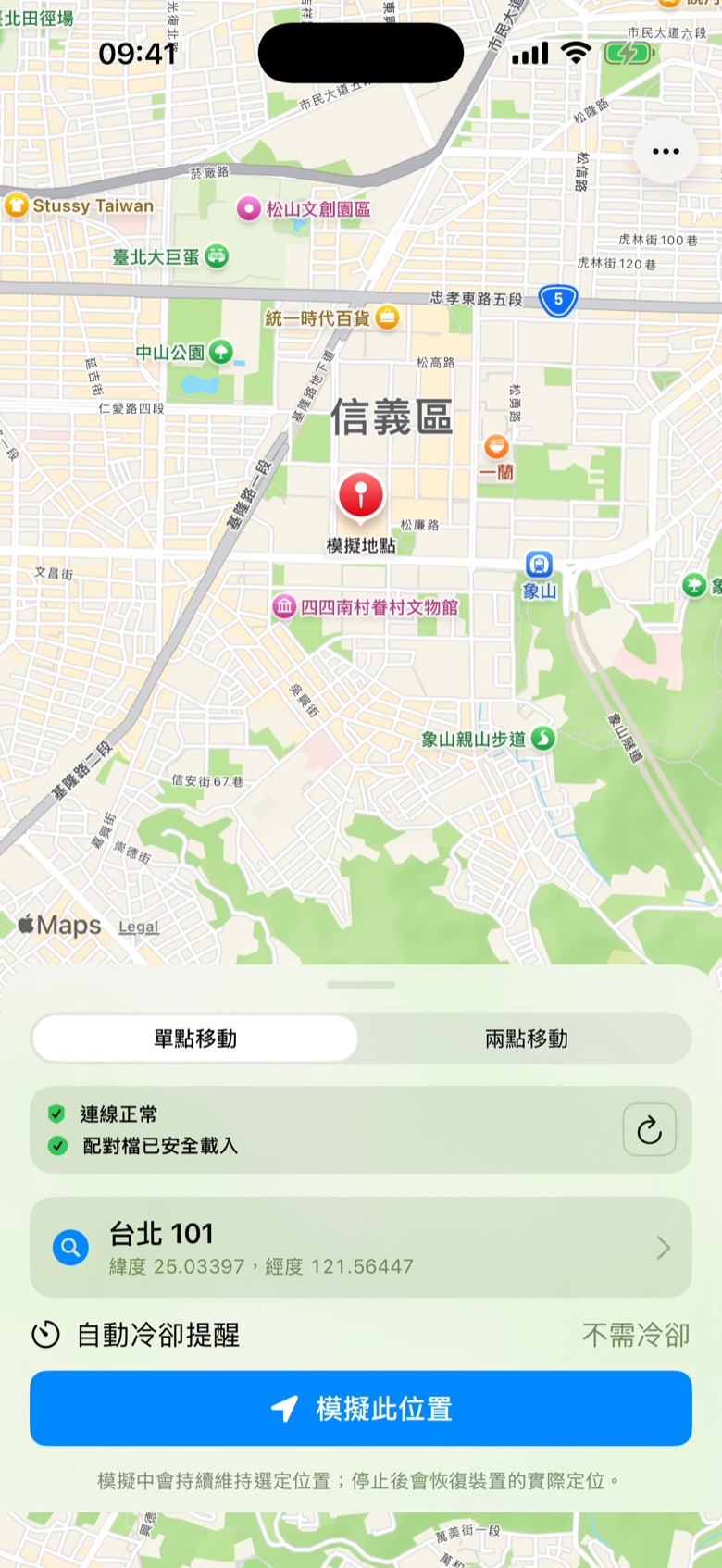
Places, coordinates and routes all come from Apple Maps.
Pause anytime and continue from where you are. Stop clears the simulated location.
Get a local notification when a route reaches its destination.
Connection and pairing status are shown up front, so you never guess what’s wrong.
No account. Coordinates, routes and pairing files are never uploaded to our servers.
Make sure a compatible external tunnel is active. After switching between Wi‑Fi, cellular or Airplane Mode, reconnect the tunnel and refresh the status in the app.
Each iPhone needs its own pairing file, created on a Mac that trusts it. Never use someone else’s file or publish yours.
Not guaranteed. iOS may suspend background apps. Choose “Always” for location access and keep CoordinateLab in the foreground.
No. It’s an advisory estimate based on distance and route time. It doesn’t reflect any third party’s rules and can’t prevent account action.
CoordinateLab is intended only for software development, debugging and location-scenario testing on devices you own or are authorized to use. It is not proof of a real-world location. Follow applicable laws and third-party terms.
Free to download. Requires iOS 17 or later.